Disclosure: This is a paid guest post. The author or an affiliated third party paid for its publication, and the article may contain promotional links. The views and opinions expressed are those of the author and do not necessarily reflect those of GameTyrant or its editorial staff.
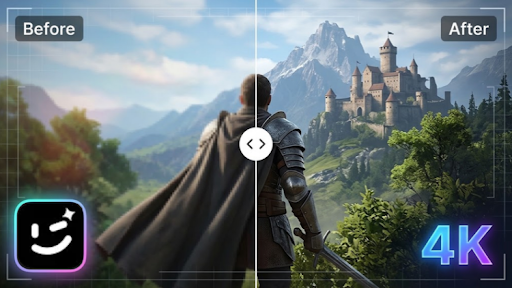
Gameplay footage is brutal to upscale. Unlike a talking-head interview or a slow B-roll shot, game capture is full of things that break upscalers - fast camera pans, particle spam, tiny HUD text, and high-contrast edges that love to shimmer.
If an upscaler can survive that, it can handle pretty much anything.
So we skipped the easy stuff. For this test, we took the worst-case scenario: fast movement, low-light maps, and HUD-heavy footage that usually falls apart when you try to push it to 4K.
Below is what happened before and after using Wink, what it gets right on textures and text, and where it struggles.
The Test Files - What We Actually Used
Three different types of input were used to stress test the tool:
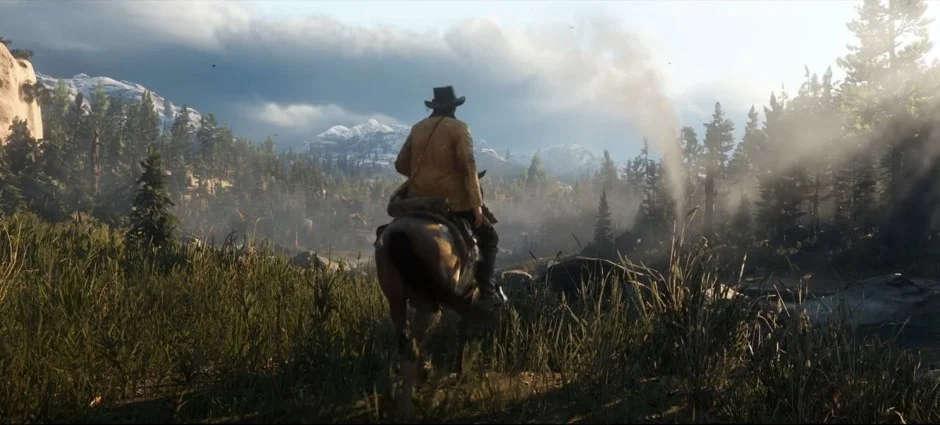
1. Elden Ring PC - 1080p60 at 12 Mbps from OBS. Lots of open-world foliage, fast movement with dodge rolls, and dark, noisy catacombs. Used this to test motion handling and temporal stability.
2. Tears of the Kingdom - 720p docked. Naturally soft footage with aggressive anti-aliasing, plus small UI - shrine icons, stamina wheel ticks, dialogue text. This was the sharpness test.
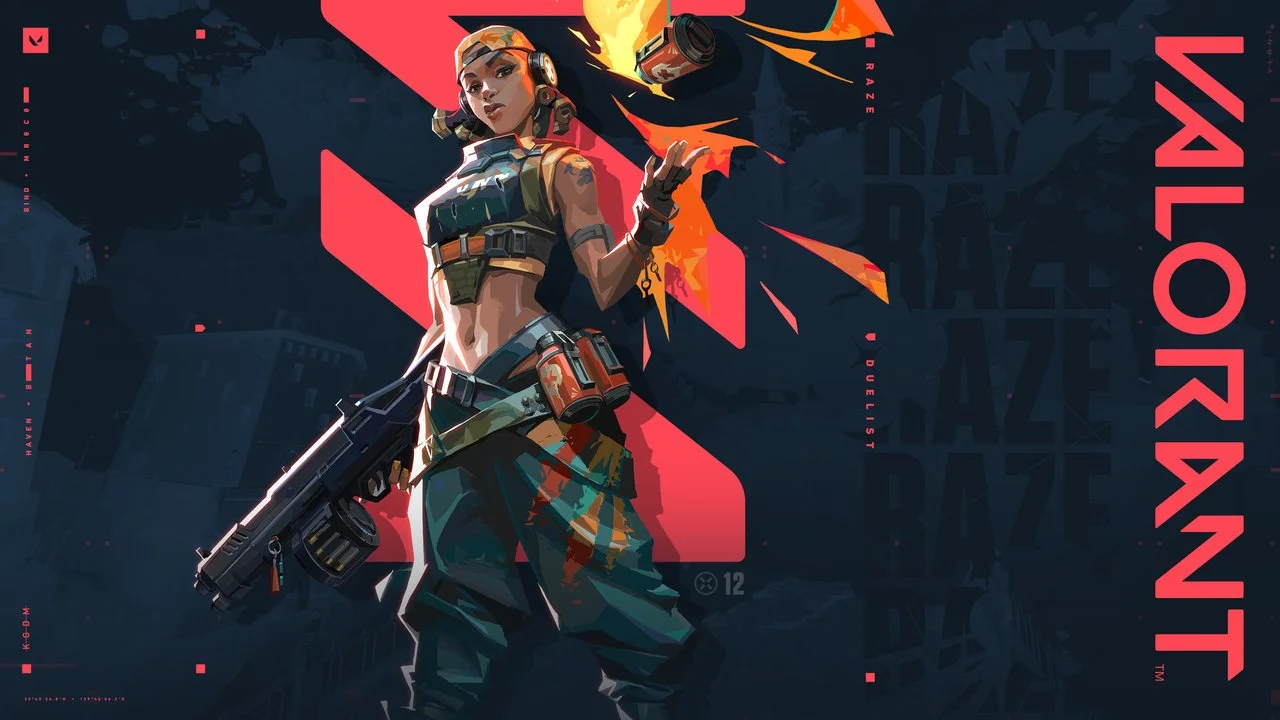
3. Valorant - 1080p60 replay export. Looks clean but is tough on upscalers. Small ammo counter, thin one-pixel crosshair, minimap dots and lines, ability icons. Pure HUD and text test.
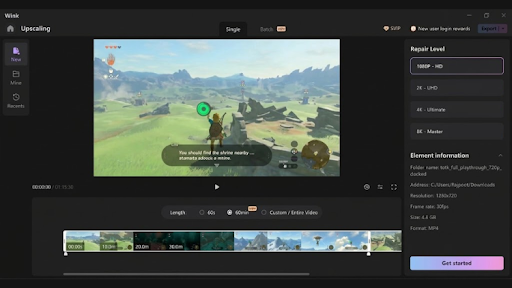
We used the desktop build of Wink HD Video Converter for this test. Wink is an all-in-one toolkit - you get Video Upscaler, Video Enhancer, Watermark Remover, and a bunch of other tools in one place. For this test, we stayed in Upscaling.
Wink does have an online converter for quick one-offs and a mobile app, but for this kind of work, desktop is better - you get ProRes export and proper batch queueing. That matters a lot when you have 40 clips sitting there.
Settings were dead simple - 1080p/720p to 4K, left on default. A 45-second 1080p60 clip took about a minute on an RTX 4060. You can queue the whole batch and just walk away. Wink handles denoising and color correction by itself, so there are no sliders to mess with, no denoise level or face recovery to fiddle with.
If you're not happy with the color or if a clip is still noisy, Wink has separate tools for that. There's a dedicated color correction tool, a video denoiser, and a low-light enhancer, so you can run those before or after the upscale.
Before and After - Textures
Elden Ring before: With normal NLE scaling to 4K, trees turned into a green watercolor. Armor lost its chainmail pattern. Ground texture in Limgrave looked smeared during a pan.
After: Through Wink, leaf clusters kept separation while moving. Brick on castle walls regained actual brick lines instead of a blurry brown mass. Chainmail had a visible pattern again. No ghost trails around the character during rolls.
The key difference is temporal stability. A lot of upscalers look sharp when you pause, then flicker when you play. This held together frame to frame. That is what makes it usable in a timeline, not just for a thumbnail.
Before and After - Text and HUD
This is the real test. Text and HUD is where most tools fail, so this is where we spent a lot of time.
Valorant before: Bicubic upscale in DaVinci. Ammo counter says "24" but the edges bleed, it's not sharp. Minimap dots clump together. Thin crosshair gets thick and uneven when you move.
After: You can see in the screenshot below that, with Wink AI video enhancer, the same frame at 4K, "24" is now actually sharp. No halo. Minimap dots stay separate as they should. Crosshair stays a clean one-pixel line even during fast flicks. Icons keep their shape.
Tears of the Kingdom before: Shrine icons were super soft, stamina wheel was blurry, dialogue text had that fuzzy halo thing.
After: After running it through Wink, at 100% on a 27-inch 4K monitor, icons are crisp and text boxes are clean. Even the altitude numbers when paragliding - tiny white text over ground that's moving fast underneath - they stay put. No wobble, no melting. If you make guides or analysis videos, that readability matters more than foliage.
Where It Still Struggles
Nothing is 100% clean with any upscaler, and this was no exception. Two issues showed up that are worth calling out:
1. Thin 1-pixel lines can shimmer. On one Valorant clip, a pure white 1-pixel border around the minimap had a very faint shimmer every 30-40 frames when viewed at 200% zoom. At normal viewing distance at 100% in the final export, it was not noticeable, but it is there if you pixel-peep.
2. Dark, noisy skies. In heavily compressed night scenes, existing banding became slightly more visible after enhancement. Turning off extra sharpening and keeping a bit of original grain fixed most of it. We found it is better to enhance flat/log footage before heavy grading, not after.
What we did not see were the usual deal-breakers: no melted faces on facecam overlays, no wax skin when face recovery was set to low. On high, skin did get too smooth, so for gameplay work, low or off is better.
Final Verdict: Should You Use Wink for Gameplay Videos?
Wink did well on all three gameplay tests. It brought back texture detail, kept tiny HUD elements readable, and handled fast movement without that flicker you usually get with upscaled video. There are still some issues - super thin lines can shimmer, and dark, noisy scenes need careful handling - but overall the results are solid and usable.
For gaming creators with a lot of 720p and 1080p footage sitting around, it's a simple way to get those clips ready for 4K projects. Desktop is better for batch jobs, and the other tools cover you if you need extra color correction or noise reduction.
Best results still come from a decent source file, though. Wink can improve what's there, but there's a limit. Test your clips first, check at full resolution on a big monitor, and use it where you actually see a difference.