Players who return to VALORANT later may not always want to continue with the same account or progression. Some choose to buy Valorant account options with different skins or account progress. Others prefer to keep their existing account and consider Valorant boost services to get back to their previous rank faster.
Below is a step by step guide of Valorant tips that covers the clean, practical way to uninstall the game, remove Vanguard, and clean up leftover files so a future reinstall valorant attempt doesn’t get weird.
Understanding the Need to Uninstall Valorant
Most players need to uninstall valorant for one of three reasons: troubleshooting, storage, or just taking a break from the game.
A clean uninstall also helps when you’re stuck on common valorant error codes like VAN9001 or VAN140. Those often point to system requirements or Windows security settings, but a fresh install can still be part of the fix if files got corrupted during an update or the installation process.
One more thing people worry about is progress. Your skins, rank, and history are tied to your riot account and stored on Riot Games servers, not your local drive. Uninstalling won’t wipe your valorant account.
Step-by-Step Guide to Uninstall Valorant
This is the most reliable order if you want to remove valorant and avoid Vanguard blocking the uninstallation process.
1) Exit Vanguard and close Riot background apps
Before you uninstall the game, make sure nothing Riot-related is still running.
- Check the system tray in the bottom right corner.
- Right-click the Vanguard icon and choose exit vanguard.
- If you also see the riot client running, close it too.
If the icon is missing, open task manager and end any VALORANT, Riot, or Vanguard processes. This is the fastest fix for “game is running in the background” errors.
2) Uninstall Riot Vanguard first
On Windows, Vanguard is its own entry. Removing it first prevents the anti cheat from interfering.
- Press windows + I to open windows settings.
- Go to Apps, then Installed apps (or Apps & features depending on your Windows version).
- Find riot vanguard and click Uninstall.
- Follow the on screen instructions, then restart.
This restart matters because Vanguard installs services that fully stop only after a reboot.
3) Uninstall VALORANT
After the restart:
- Press windows + I again.
- In the apps list, find valorant and click Uninstall.
At this point, you’ve done the core uninstall valorant steps. If your goal is how to fully uninstall valorant, keep going with cleanup.
4) Delete leftover files (optional but recommended)
Even after you uninstall the game, you can have leftover files and residual files that cause patch issues later.
- Open file explorer.
- Check these locations and delete what’s left:
- C:\Riot Games (this is often the riot games folder)
- C:\Program Files (look for a riot vanguard folder if it still exists)
- C:\Program Files\Riot Games (if present)
If you see a riot games folder you don’t recognize, open it first and confirm it’s riot games files tied to VALORANT before you delete.
Finish by emptying the recycle bin.
Alternative Methods to Uninstall Valorant
Sometimes Windows uninstallers break, or Vanguard services won’t release properly. These methods are the common fallbacks, but you can also follow this Valorant uninstall guide for a clearer step-by-step solution.
Use Control Panel
This is a solid option if Settings is bugging out, and it’s also handy for how to uninstall valorant windows 11 when the Installed apps list won’t load
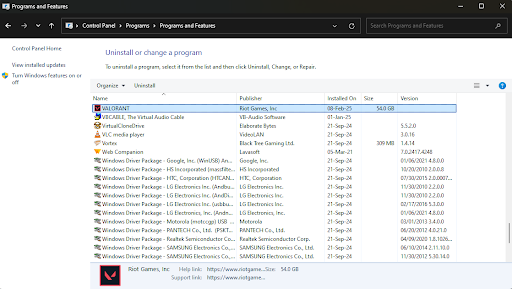
- Press windows, type Control Panel, and open it.
- Go to control panel, then programs, then programs and features.
- Find valorant, right-click, and uninstall.
- Do the same for riot vanguard if it’s still listed.
This approach is also useful if you’re trying to uninstall the game from a more “admin” oriented interface.
Manually Uninstall Vanguard with Command Prompt
If you can’t uninstall riot vanguard normally, you can manually uninstall vanguard by removing its services. Do this carefully.
1) Close everything first
- Exit Vanguard from the system tray.
- Close riot client.
- Restart if things feel stuck.
2) Run Command Prompt as admin
- Press windows, type cmd, then choose Run as administrator (admin mode).
- In command prompt, run the following commands, pressing Enter each time:
- sc delete vgc
- sc delete vgk
Make sure you press enter after each line. After that, restart your PC.
3) Delete the Vanguard folder
- Open file explorer
- Go to C:\Program Files
- Find riot vanguard folder and delete it
If you’re following guides online, you may see wording like following commands. The key is that sc delete vgc and sc delete vgk remove the services, then you remove the folder.
Troubleshooting Common Issues
“VALORANT won’t Uninstall” or “Remove Button Does Nothing”
- Open task manager and end Riot and VALORANT processes.
- Exit Vanguard from the system tray.
- Restart Windows and try again.
If you still can’t remove valorant, use the Control Panel method or the Command Prompt method above.
“I Tried to Uninstall From Riot Client”
A common misconception is how to uninstall valorant from riot client. The riot client is mainly a launcher, and uninstalling from inside it is not the reliable path. Use Windows Settings or control panel instead.
If you’re trying to do how to uninstall valorant and riot client, uninstall VALORANT and Riot Vanguard first, then remove the riot client entry from Apps if it remains.
Vanguard-related Issues After Uninstall
If Vanguard seems to linger, do these quick checks:
- Search Installed apps for riot vanguard.
- In File Explorer, check C:\Program Files for Vanguard remnants.
- If services are still present, repeat the Command Prompt removal steps.
If you’re troubleshooting a Vanguard error tied to Windows security, you might also see mentions of control flow guard in Riot’s messaging. That’s a Windows setting, not something you fix by deleting random folders.
Should You Clear Registry Entries?
Most players don’t need to. If you decide to clean registry entries, be careful because if you mess up, you could end up with an unstable system. A clean uninstall using uninstallers and deleting the remaining files is usually all you need.
Valorant Reinstallation Guide
In case you wish to reinstall valorant since you performed a clean uninstall, you should:
- Open the official valorant download page.
- Log in with your riot games account.
- Download the client and install it.
- Launch the client and begin playing.
- Allow vanguard to install; restart your computer as prompted.
- Launch the valorant client and begin playing.
In case you play league of legends as well, you should be aware that vanguard could be needed for it as well.
Conclusion
The best way to fully uninstall valorant is to exit vanguard, uninstall riot vanguard, uninstall valorant, restart, and then delete files in the riot folders under program files. However, if windows is not cooperating, then Control Panel and Command Prompt (sc delete vgc, sc delete vgk) are the two sure-fire backup options.
Now that it is gone, you can always come back to it later with a fresh start without losing any progress on your account.