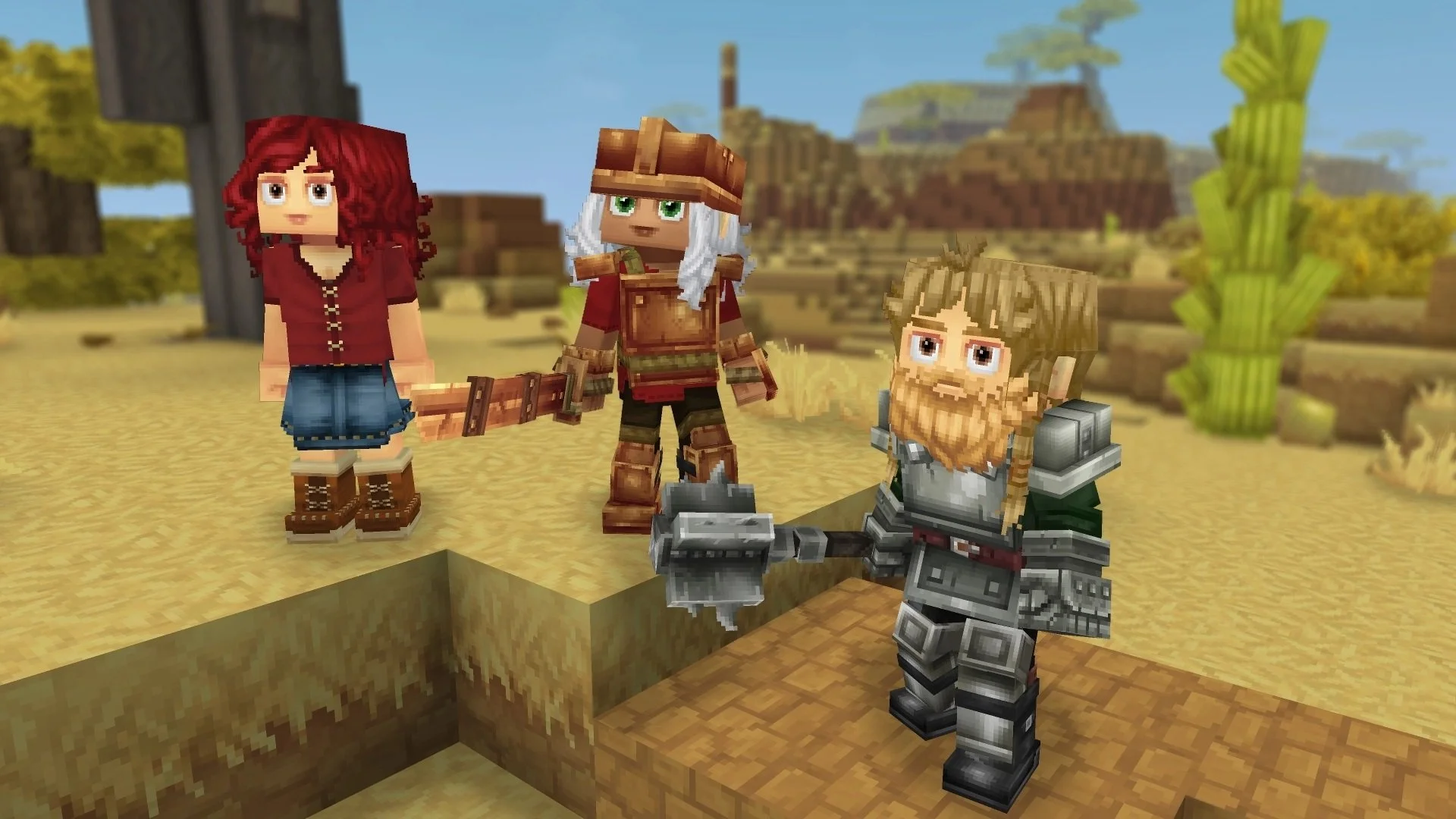
As fun as it is to test your survival and crafting skills in a blocky world, Hytale can be even better with multiplayer. As an early access title with its own launcher and no Friends List feature, joining an online world will take a few extra steps compared to most games.
The good news is that it’s still pretty simple to set up an online world or jump into one belonging to a friend. Here’s how Hytale’s multiplayer works.
How to play Hytale online with friends
Hytale’s method of connecting players revolves around sending out Share Codes. These are generated by the host of a world, who can then provide them to other players so that they can. Both Exploration and Creative worlds can be played with multiplayer, although this isn’t decided when they’re first generated.
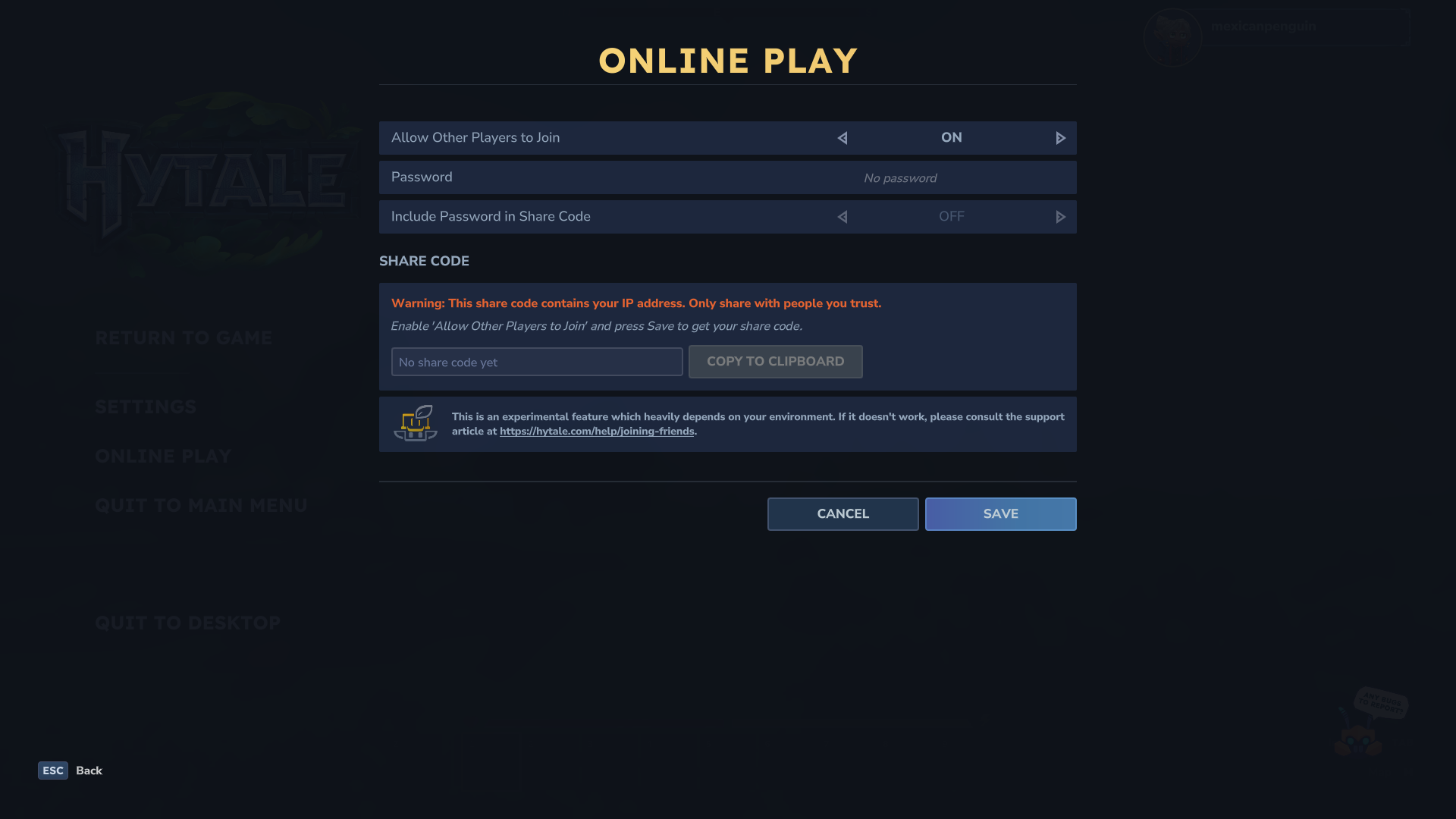
No matter if it’s a freshly-made world or one that you’ve already spent plenty of time with, multiplayer has to be enabled before any friends can join. This is achieved by pausing the game while in a world and then selecting Online Play. Toggle the Allow Other Players to Join option at the top to add multiplayer capabilities to your world.
This adds options for requiring a password to join and whether or not a password is automatically included in a Share Code. More importantly, the Save button below should now be highlighted. Click it to generate a Share Code in the box above. Click on Copy to Clipboard and then send it off to whichever friends you want to give an invite to your world.
Note that the warning that the Share Code includes your IP address, so you won’t want to share this with the public.
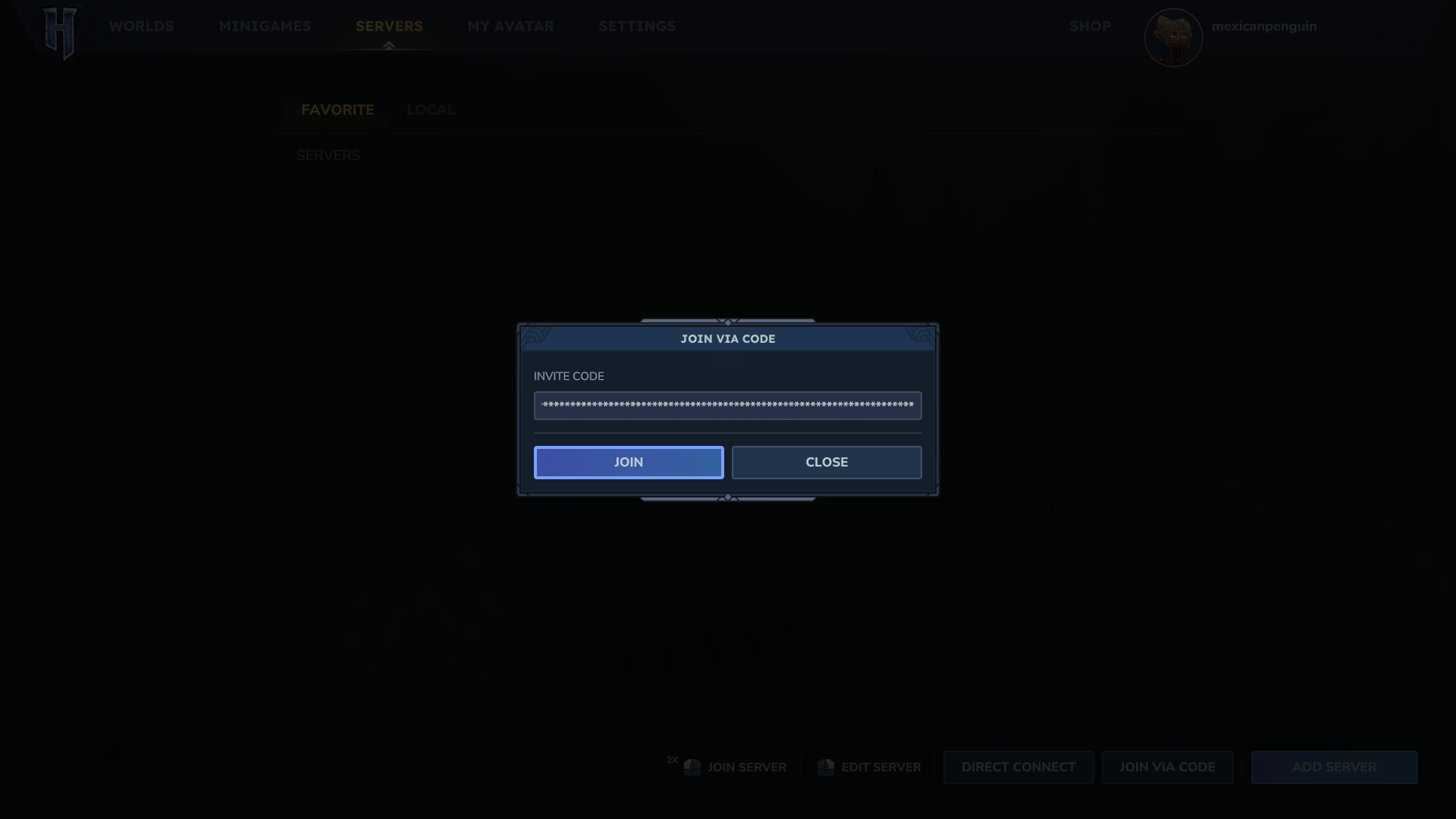
Joining an online world is an even easier task. If your friend has sent you a Share Code, you’ll need to launch Hytale and select the Servers option. Clicking the Join via Code box on the bottom right will bring up a text box to paste the Share Code into. Click Join afterwards, and you should drop into your friend’s world after a brief loading screen.
In the event that the host did set a password and specifically set it to not be included in the Share Code, you’ll need to enter the password as the final step. Take note that a player’s online world is not the same as one hosted on a server. The host needs to be online and playing in the world, or else players won’t be able to join.
Hytale isn’t currently hosting any dedicated servers on its end, so this is the easiest way to play with your friends. For those interested in hosting an always-active world, the developers currently recommend either third-party server hosting or for players to set one up themselves.