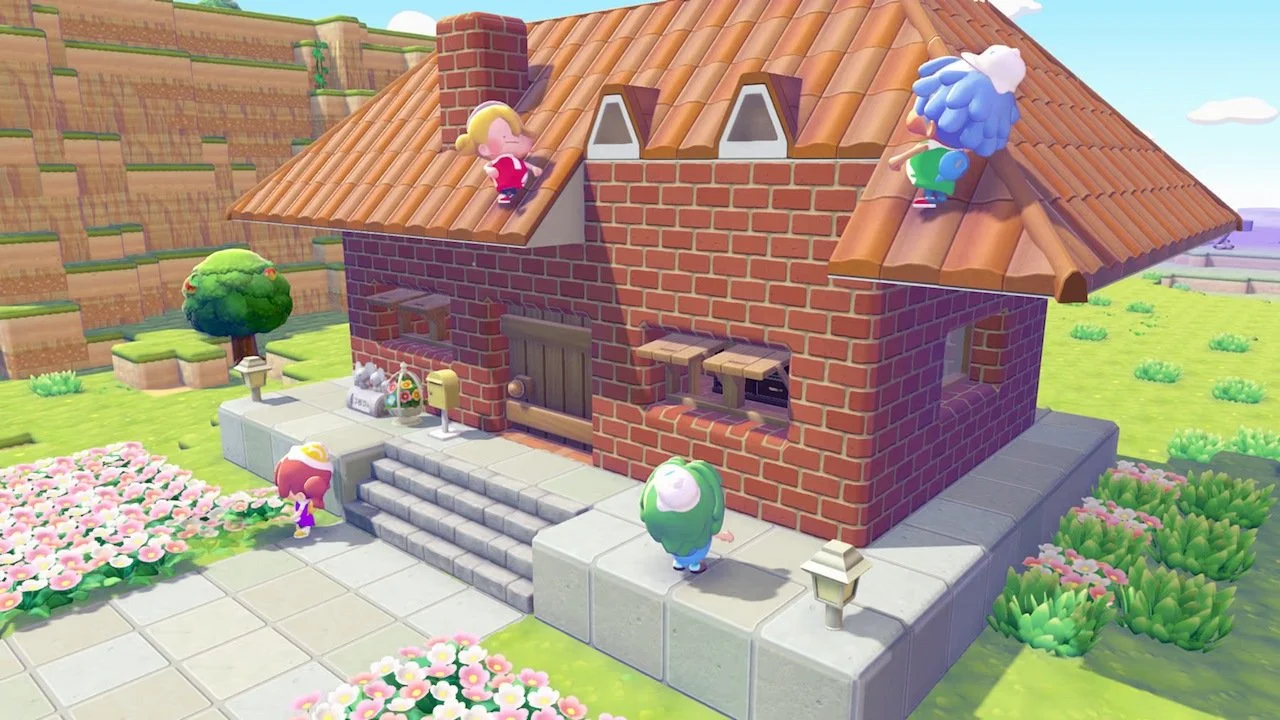
Playing Pokémon Pokopia alone is nice, but playing with friends is even better. There are multiple ways you can play this game with a friend or two, and there’s even a way to play with someone who doesn’t own the game. We’ll outline everything you need to know about playing Pokémon Pokopia with friends in this multiplayer guide.
How to play online with friends in Pokémon Pokopia
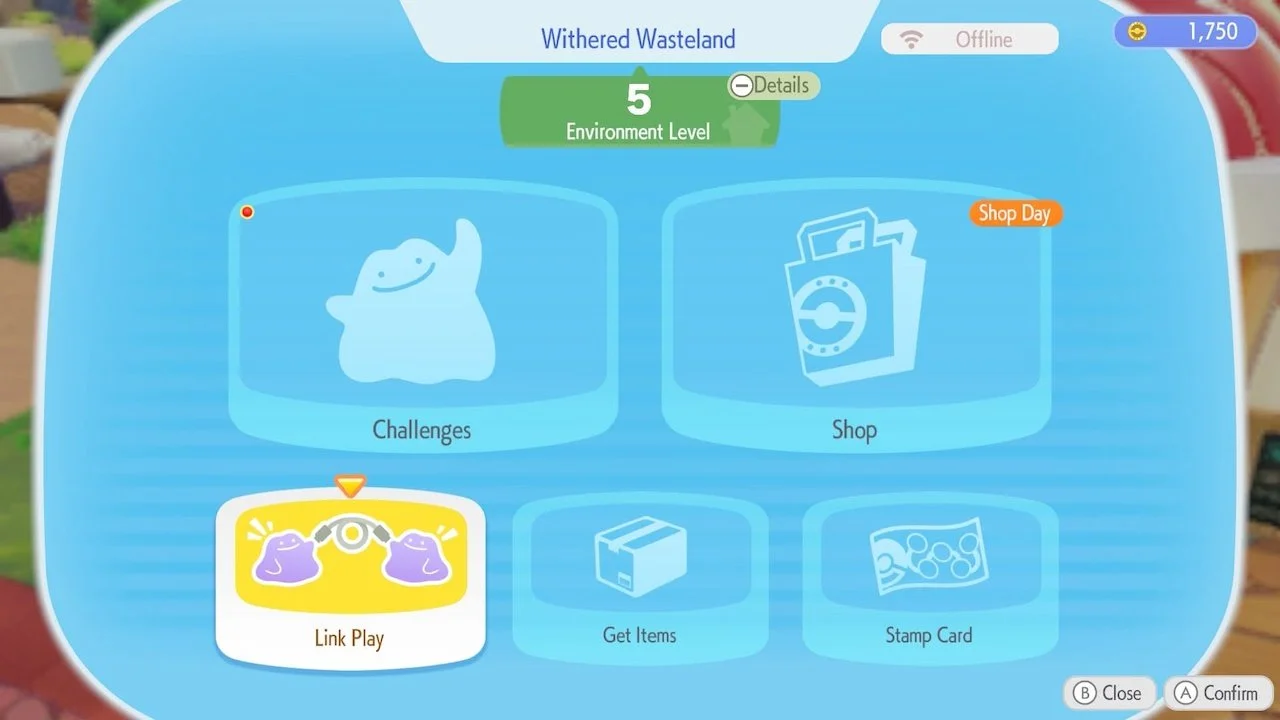
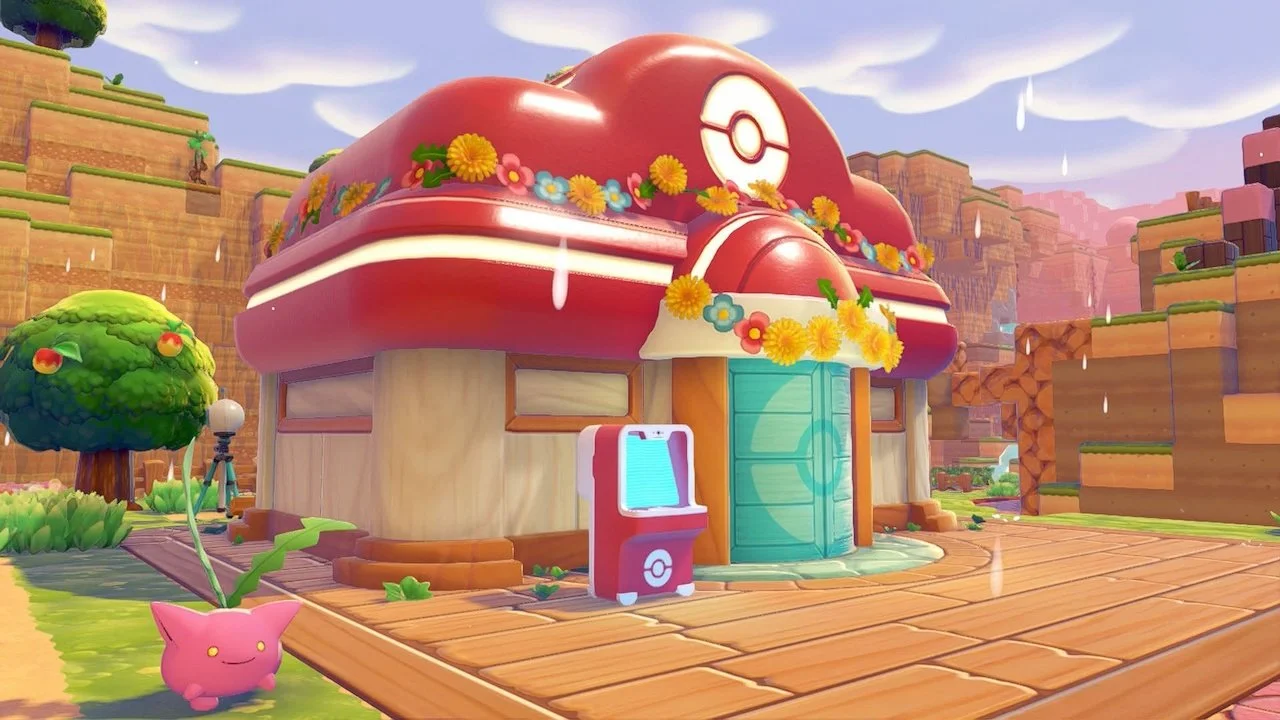
To play Pokémon Pokopia with your friends, start by interacting with a PC at any Pokémon Center and selecting the ‘Link Play’ option. You will have three different options available: either invite a friend to your island, visit another friend’s island, or play on a Cloud Island.
Unlike Dream Islands, Cloud Islands are online worlds that are consistently available to join, and no one needs to host one. Think of it like a Minecraft server. The first two options are much simpler; you can invite up to three other players to your island, or join someone’s island with up to three other players.
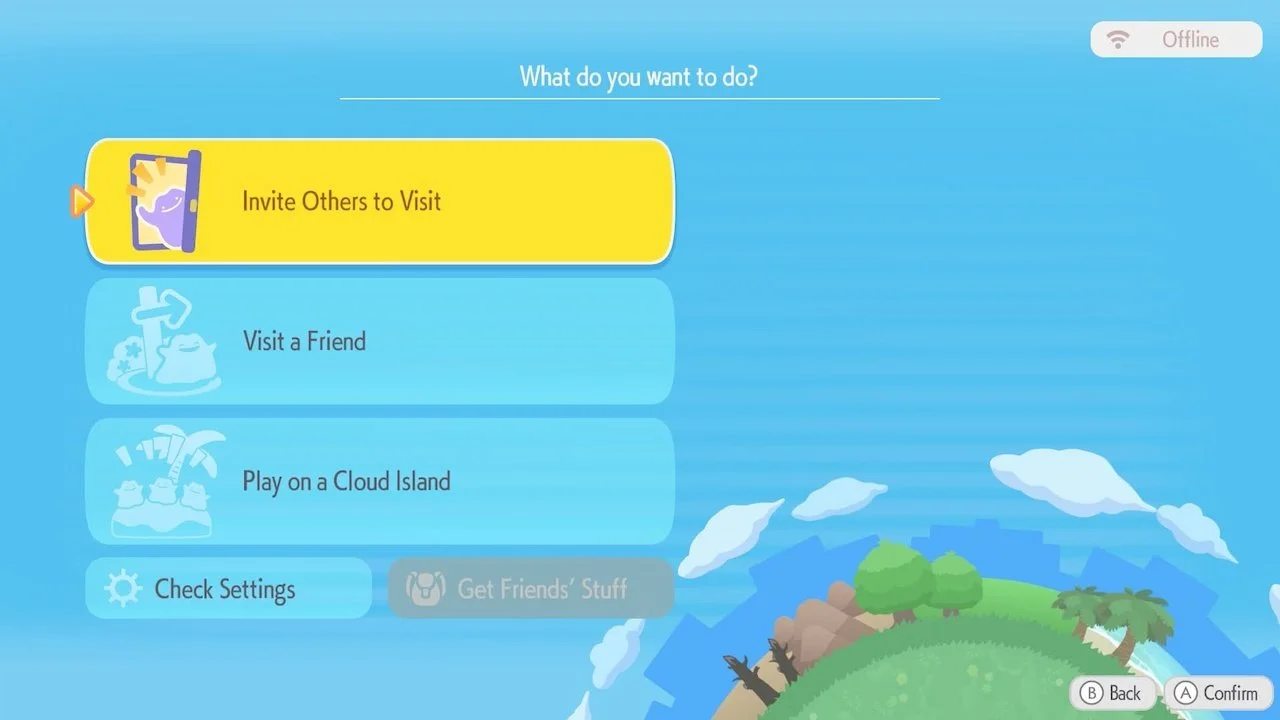
Upon selecting any option, you will then choose whether you’re playing local or online. Local means you just need to be near someone else with their own Switch, and it doesn’t require a Link Code.
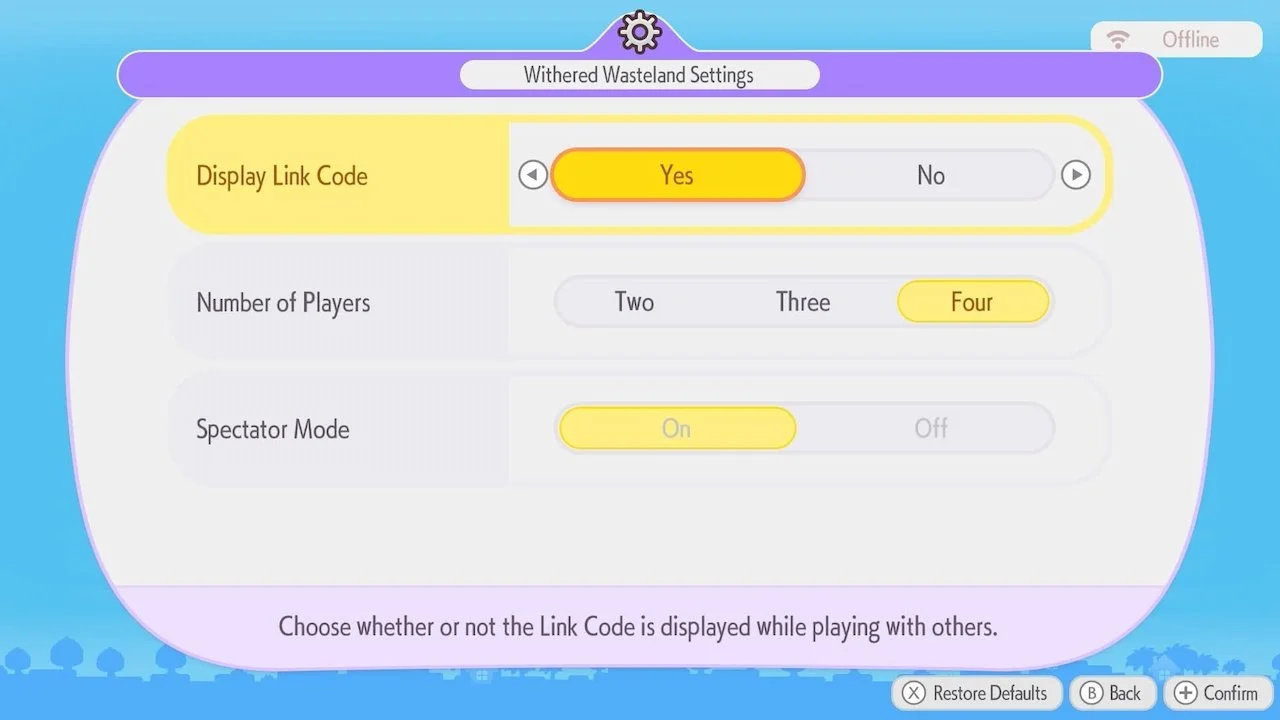
You’ll then be presented with some options if you’re hosting. You can choose whether you’d like to hide or display your Link Code during multiplayer, how many players you’d like to play with, and if you’d like Spectator Mode on. Spectator Mode will prevent other players from being able to use certain actions and items.
Once you confirm these options, your world will be online, and your friends can use your Link Code to join. When joining another person’s world, you will simply need to input your friend’s Link Code to enter.
How to use GameShare in Pokémon Pokopia
GameShare is an entirely different way to play with a friend, even if they have a Switch 1 and don’t have a copy of the game. Upon selecting the option to invite others to visit, choose the GameShare option, and you can decide whether or not to play with GameChat on.
Otherwise, you can choose to play with nearby players and simply follow the instructions to invite someone via GameShare. Meanwhile, if you’re the one joining someone with GameShare, select the GameShare button on your Switch’s home menu and wait to join the available Pokopia game when it appears.
As a warning, you will be unable to play via GameShare until you unlock Palette Town. You can get to Palette Town from the western exit of Withered Wasteland.
Now that you know everything about playing multiplayer, you should also learn how to make Bricks in Pokémon Pokopia!