Disclosure: This is a paid guest post. The author or an affiliated third party paid for its publication, and the article may contain promotional links. The views and opinions expressed are those of the author and do not necessarily reflect those of GameTyrant or its editorial staff.
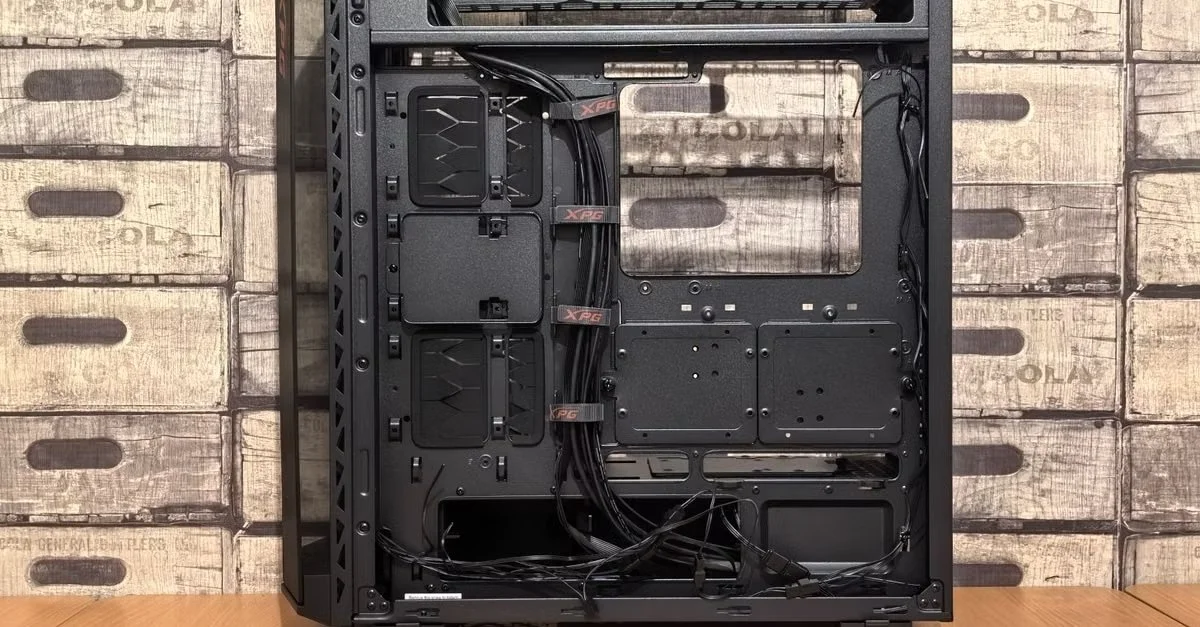
A new gaming PC can chew through your budget before you install a single game. Once you’ve picked the GPU, storage, and everything else, Windows may look like one more unavoidable expense. But you can keep that line item under control by treating three things separately: which edition you need, how you install it, and how you license and activate it. Get those decisions in the right order, and you’re less likely to pay for features you’ll never use.
Pick the Windows Edition Your Games Actually Need
For most gaming builds, Windows 11 Home is enough. If your plan is to install games, use your usual apps, chat with friends, and maybe stream your play, don’t assume that “Pro” means a better gaming edition. Paying for Windows 11 Pro does not, by itself, make a graphics card render more frames. The useful question is whether you need a particular Pro feature outside your games.
Hyper-V is one reason to consider Pro if you want to run virtual machines for testing or other projects. It also requires compatible hardware, including a processor with second-level address translation, so the edition alone is not the whole checklist. Another distinction is Remote Desktop: a Home PC can connect to a compatible remote computer as a client, but hosting a Remote Desktop connection to your gaming PC calls for Pro. That matters if you intend to access the machine remotely using that feature, not if you simply play online with friends.
Make the edition decision before buying a key or starting a clean installation. You can avoid paying extra for Pro if its features do nothing for your setup, and you’ll know which edition to select when the installer asks. Think of this like choosing a motherboard feature: buy it because you’ll use it, not because the name sounds like an upgrade.
Make the Installer USB Before the Build Is Finished
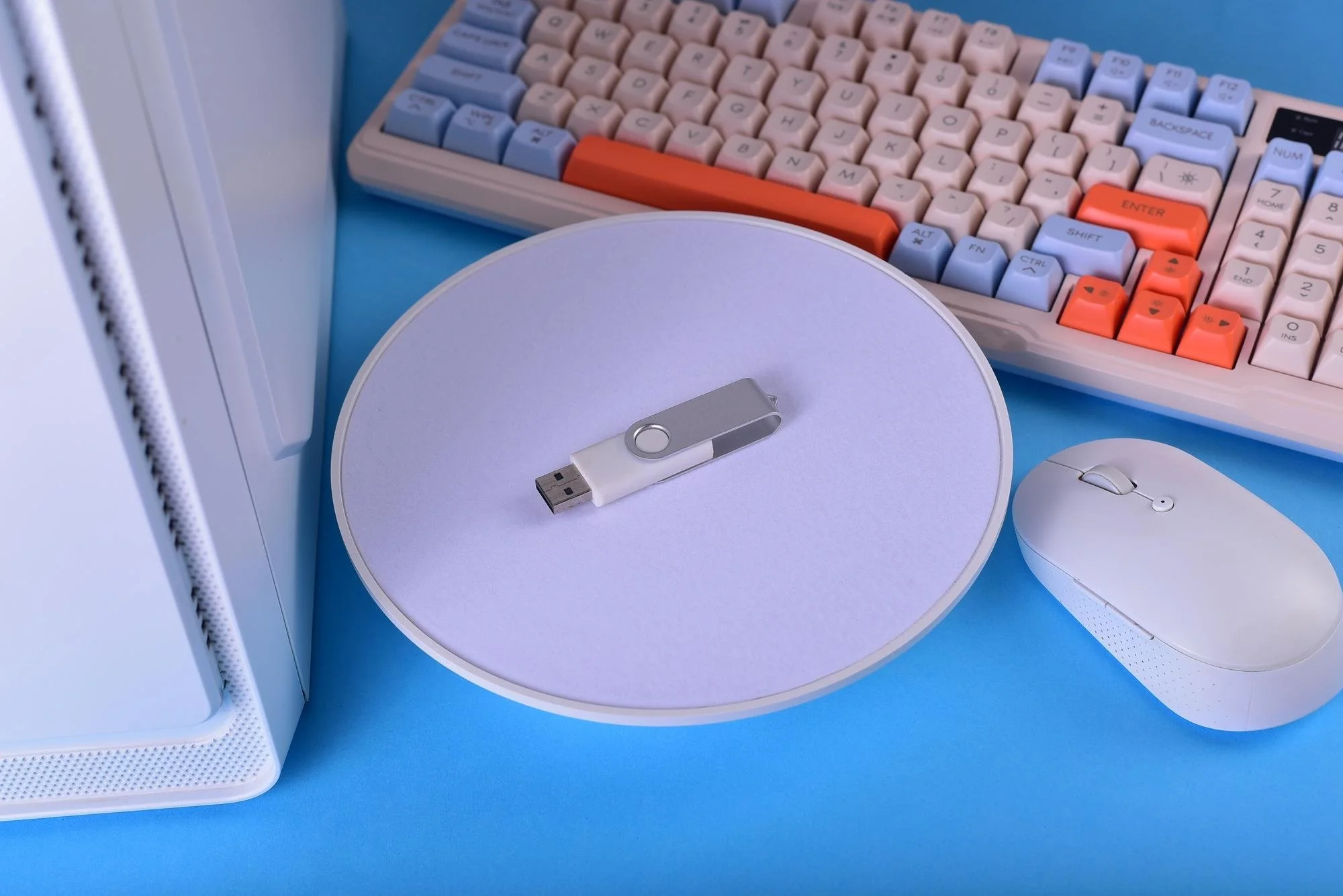
You don’t need to buy a preloaded USB stick to put Windows on a new machine. On a working Windows PC, visit Microsoft’s official Windows 11 download page and use the Media Creation Tool under “Create Windows 11 Installation Media.” It downloads the installation files and prepares a bootable USB drive. Download the tool directly from Microsoft rather than grabbing an installer from an unfamiliar download site.
Set aside an empty USB drive with at least 8 GB of space. Microsoft’s installation media instructions warn that the drive’s contents will be deleted. If it has old files on it, copy them somewhere safe first. It’s an easy precaution to forget when you’re focused on getting the new hardware to POST.
Once the build starts reliably, plug in the installer USB and choose it from your motherboard’s boot menu. The key for opening that menu varies by board, so check its manual rather than repeatedly guessing at startup. Follow the Windows setup prompts for language, keyboard, and installation destination. On a new drive, make sure you’re selecting the storage device intended for Windows; on a drive you’re reusing, back up anything you want to keep before deleting partitions or formatting it. The USB gets the operating system onto the PC, but it is not a Windows license.
Install First, Activate Afterward
A product-key prompt during setup does not have to derail the build. Where the installer offers an option to proceed without entering a key, you can finish installing Windows and handle activation after the desktop is running. Choose the edition you intend to license if setup asks: a Home key is for Home, while a Pro key is for Pro. Deferring the prompt is just a way to complete setup; it does not turn the installation into a free license.
After the first boot, connect the PC to the internet and open Settings > System > Activation. That screen shows whether Windows is activated and lets you enter a product key through “Change product key” when one is needed. If the PC already has an applicable digital license or a key stored in its firmware, Windows may recognize it for the matching edition. Don’t count on an old license automatically covering a new build, though. Check the activation status on the actual machine rather than assuming the installer’s successful finish means the licensing step is done.
This order also makes troubleshooting less chaotic. First confirm that the hardware boots and Windows runs; then check the edition and activation message. If activation fails, verify what you installed and what the key was sold for before changing settings or reinstalling. An edition mismatch is a more useful place to start than trying random keys.
Spend Carefully on the License
The Media Creation Tool and installation files are available from Microsoft without buying a USB installer. The license is a separate purchase decision, and that’s where shopping carefully can save you money. Start with the edition you chose for the build. If Home covers your gaming needs, compare Home offers rather than paying for Pro just because a listing makes it look like the default choice for a custom PC.
Read the specific product listing before checkout. Check that it names the Windows version and edition you intend to install, states how many devices the purchase covers, and explains the license type and any applicable conditions. Those details matter more than a dramatic crossed-out price. A low-cost key that doesn’t match your edition or intended use is no bargain if it sends you back to the activation screen.
Nerdused (UK-registered, Transfleet Trading Ltd) offers genuine Windows keys; as with any seller, compare the particular listing’s edition and terms with your build before buying. Keep the order confirmation and key details somewhere you can retrieve them if you need to revisit activation later. Saving money should mean choosing the right product at a price you’re comfortable with, not confusing a free installer download with permission to use Windows without a license.
A Clean Build Checklist Before You Launch
Before the first big game download, give the finished PC a quick once-over. Make sure Windows reports the edition you intended to install and check its activation status in Settings. If you prepared the USB on someone else’s computer, confirm you’ve retrieved any files you backed up before creating the installer. Put your purchase details in a safe place rather than leaving the product key in a temporary message or on a scrap of paper beside the case.
Then take care of the ordinary post-build jobs: let Windows run its updates, install the drivers your hardware needs, and verify that your games are using the display settings you expect. Those steps are more relevant to enjoying the new PC than buying Pro for a supposed gaming boost. If something goes wrong, work through it in order—boot and installation first, correct edition next, activation after that. Keeping those stages separate makes a Windows problem easier to identify and helps prevent an unnecessary second purchase.
The goal is straightforward: spend your build budget on the parts and features you’ll actually use. For a typical gaming rig, that means starting with Home, creating the installer from Microsoft’s tool, and sorting out a matching license once the machine is running. You can get from a pile of components to your first game without treating the most expensive-looking Windows option as the only choice.