Summary: In this article, we will explore the best FPS boosters for Fortnite in 2026.
Whether you're dropping into Fortnite for a fast-paced Battle Royale match or building crazy forts in Creative mode, performance matters. Low FPS or lag can ruin even a well-timed build or aim.
In this article, we break down exactly what FPS means in Fortnite, what “good” FPS looks like, why even strong PCs can suffer FPS issues, and—crucially—how to boost FPS. We also introduce a popular booster and several solid manual fixes so you can enjoy Fortnite smoothly — every time.
Part 1: What is FPS in Fortnite & How to See FPS in Fortnite
Part 2: What FPS is Good for Fortnite
Part 3: Why Is My Fortnite FPS So Low on a High-End PC
Part 4: How to Increase FPS in Fortnite
Part 5: FAQs
What is FPS in Fortnite & How to See FPS in Fortnite
FPS stands for frames per second — essentially, how many individual frames your computer draws each second while you play. The higher the FPS, the smoother the gameplay feels; low FPS or unstable FPS leads to choppiness, input lag, and a frustrating experience.
In Fortnite, you can enable an in-game FPS counter so you can monitor performance in real time. To do that: go to Settings → Video (monitor icon) → Graphics/rendering settings → enable “Show FPS” (or similar option depending on version).
Monitoring FPS helps you immediately see the impact of changing settings — like lowering resolution or toggling effects — and find the sweet spot for your hardware.
What FPS is Good for Fortnite
What counts as “good” FPS in Fortnite depends on your play style, monitor refresh rate, and competitive goals:
30–60 FPS: playable, but not ideal — may feel sluggish, especially for aiming/building. Many players treat 60 FPS as a baseline minimum.
90–144 FPS: much smoother and responsive gameplay, ideal for competitive play (especially on 120 Hz or 144 Hz monitors).
144–240+ FPS (or at monitor max refresh rate): excellent for competitive players — reduces input lag, improves build/aim responsiveness, and makes movement smoother. Many pro players aim for high FPS + adaptive sync refresh rate to maximise responsiveness.
In short: if you want competitive advantage — fast building, quick edits/shots, and smooth movement — aim for 90 FPS+, ideally matching or slightly below your monitor’s refresh rate.
Why Is My Fortnite FPS So Low on a High-End PC
Even with a powerful PC, many players still report FPS drops or stutters in Fortnite. Common culprits include:
Graphics settings too high: Ultra textures, shadows, high resolution, and complex effects can overload GPU/CPU.
Inappropriate rendering mode: Using high-fidelity rendering (e.g. DirectX 12 with high-end textures) instead of optimised “Performance Mode.”
Background processes or system load: Recording software, unneeded background apps, or OS-level tasks eating CPU/GPU resources.
Thermal throttling or hardware inefficiency: Overheating or inefficient resource allocation can cause frame drops even if specs are high.
Unoptimized in-game settings: High 3D resolution, shadows, anti-aliasing, post-processing, etc., all contribute to performance cost.
Therefore, having “good hardware” doesn’t guarantee smooth FPS — what matters is how you configure both your PC and Fortnite.
How to Increase FPS in Fortnite
Here are effective ways to bump up FPS in Fortnite — starting with a dedicated booster, then manual optimisations you can control yourself.
Best FPS Booster for Fortnite – LagoFast
Even though Fortnite runs on most PCs, its fast-paced modes, huge maps, and frequent updates can still push your system and network to the limit — especially in crowded fights and build battles. Having a “good PC” alone doesn’t guarantee smooth gameplay. That’s why a dedicated game booster can make a real difference.
When it comes to optimising Fortnite for both performance and stability, LagoFast stands out as one of the best Game Boosters & Lag Reducers in 2025. Unlike generic tools, LagoFast is designed with online games in mind — focusing on network optimization, system tuning, and real-time performance enhancements for smoother, faster gameplay.
Boost FPS automatically
Lower ping and reduce lag
Improve connection stability
Fix network-related crashes
Optimize game performance
Custom Crosshair
How to Boost FPS in Fortnite
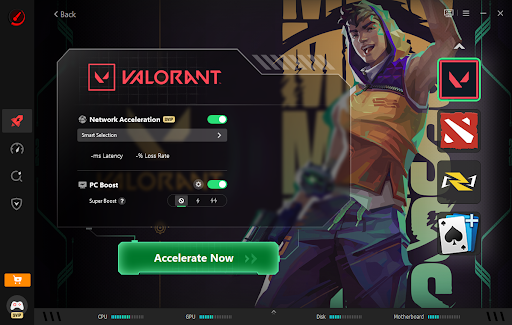
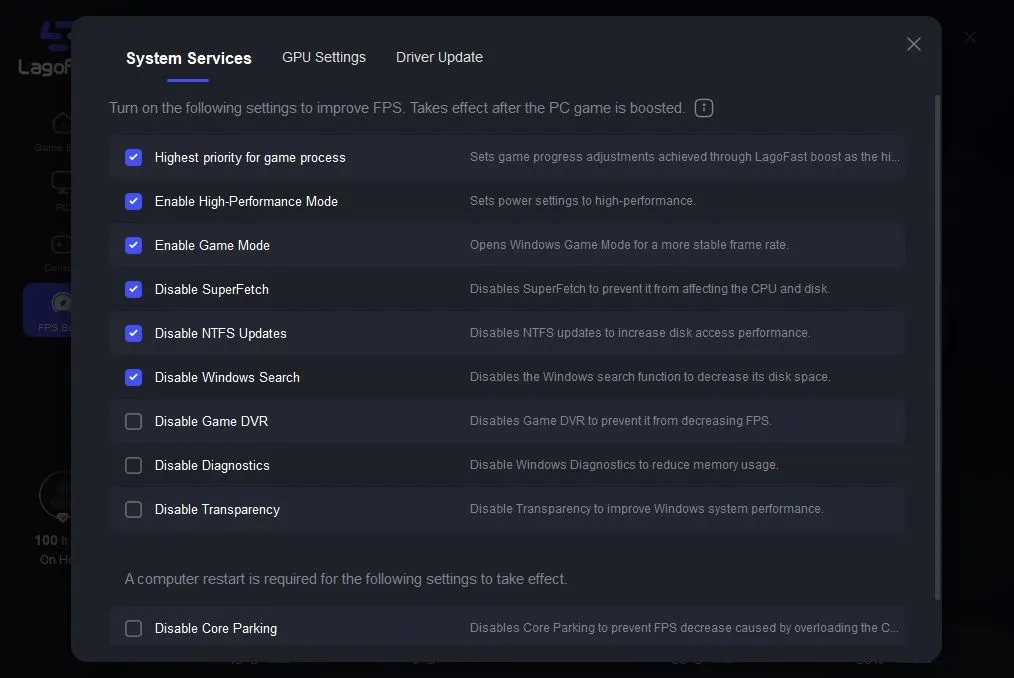
For players struggling with FPS drops or stuttering issues in Fortnite, LagoFast offers an FPS Boost feature to improve system performance and enhance graphics quality.
Open LagoFast and select the FPS Boost feature.
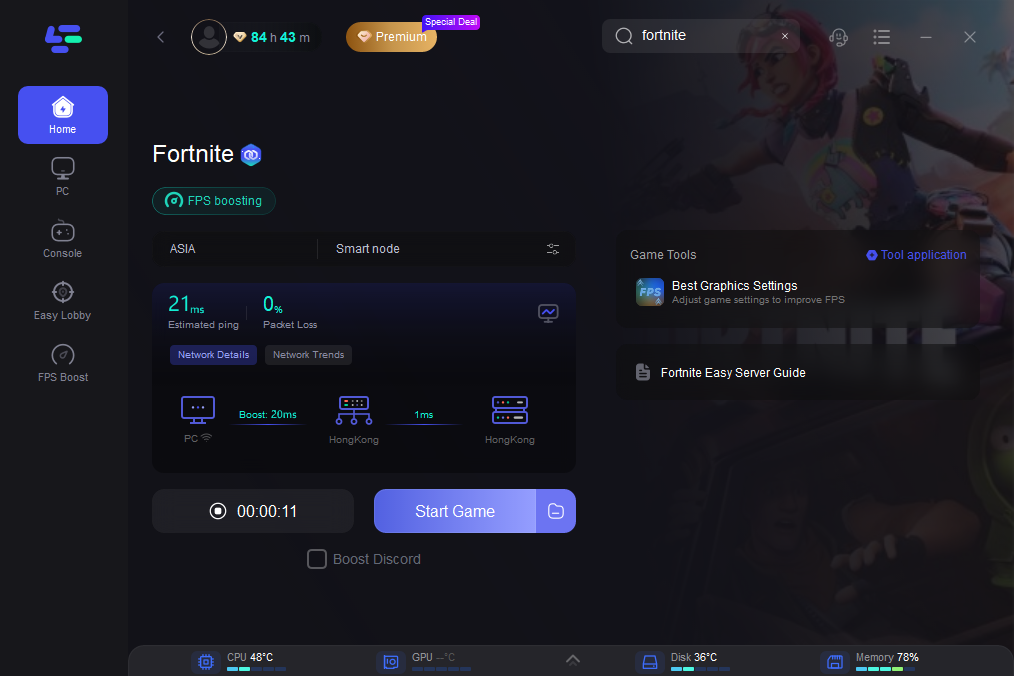
Launch LagoFast and select Fortnite from the game list
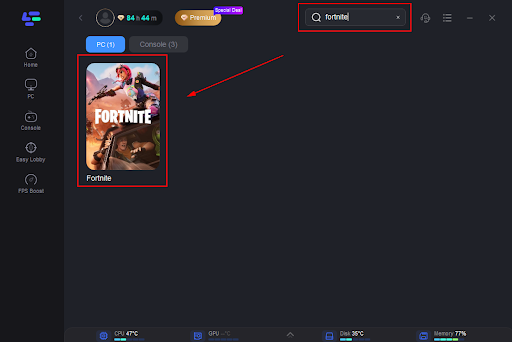
Choose the optimization/ping-reduction mode to improve network routing and reduce latency.
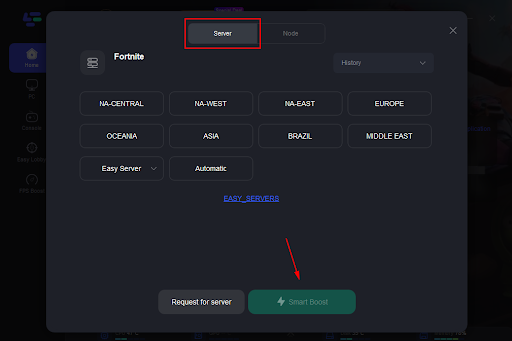
Launch Fortnite — you should notice improved stability: higher average FPS, fewer stutters, smoother builds and fights, and lower input lag.
You can also click on FPS Boost to customize the settings.
With just a few clicks, LagoFast can help make Fortnite much more stable, responsive, and performance-friendly — particularly useful if you’ve struggled with lag, FPS drops, or inconsistent performance even on decent hardware.
Manual Methods: Optimize Fortnite Settings & System
Even without a booster, you can significantly improve FPS in Fortnite by adjusting in-game settings and system configs. According to official and community sources:
Enable Performance Mode: Fortnite includes a built-in “Performance / Lower Graphical Fidelity” rendering mode to reduce load and boost FPS.
Lower graphics quality: Use low or medium settings for textures, effects, shadows; turn off anti-aliasing, motion blur, and post-processing.
Reduce resolution / 3D resolution: Lowering from 1080p to 900p or 720p (or using lower 3D render scale) can give a big FPS boost.
Use Fullscreen mode: Running the game in true fullscreen (not windowed/windowed-fullscreen) helps reduce overhead and background interference.
Enable multithreaded rendering / proper GPU usage: If you have a multi-core CPU and capable GPU, enable multithreaded rendering to better distribute load.
Monitor background processes / system load: Close unnecessary applications (recorders, heavy background apps, etc.) to free up resources for Fortnite.
Keep hardware cool and optimized: Ensure good airflow, clean fans, and avoid thermal throttling — heat can kill FPS even on powerful PCs.
Using a combination of these tweaks — and optionally a booster like LagoFast for automation — typically results in a smooth, stable Fortnite experience with high FPS, low lag, and better responsiveness whether you’re building, editing, aiming, or fighting.
FAQs
Q1: Is 60 FPS enough for Fortnite in 2025
It’s playable, sure — but if you want smooth building, quick edits, and competitive advantage, 60 FPS feels limiting. Aim for 90+ FPS (or higher if your monitor supports it) for the best experience.
Q2: I have a high-end PC, but FPS still drops. Why?
Because high-spec hardware doesn’t guarantee optimal performance. In-game settings (textures, shadows, effects), background tasks, overheating, or GPU/CPU bottlenecks often cause FPS drops. Tweaking settings or using a booster often helps dramatically.
Q3: Will lowering resolution hurt visibility or gameplay?
Lowering resolution reduces detail, but for competitive play — especially in a fast game like Fortnite — FPS & responsiveness outweigh visuals. Many pros prioritize smoothness over fidelity for builds, movement, and aiming.
Q4: Is Performance Mode the best universal fix?
For most players — especially on mid/low-end PCs — yes. Enabling Performance Mode drastically reduces GPU/CPU load and stabilizes FPS. From there, you can fine-tune manually or add a booster for extra stability.
Conclusion
Getting smooth, high-FPS performance in Fortnite requires more than just good hardware. It’s about optimization — of game settings, system resources, and sometimes using a booster like LagoFast to ensure stable performance under load.
If you’re tired of laggy build fights, stutters during crowded drops, or inconsistent FPS in big events: start by enabling Performance Mode, lower unnecessary graphics settings, clean up your system’s background workload — and if needed, consider a reputable FPS booster.