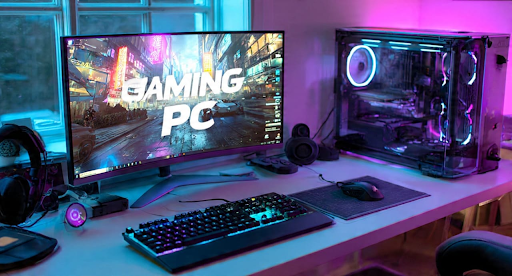
I used to assume that improving gaming performance meant spending money. More RAM. A better graphics card. A faster SSD. Maybe even a new CPU if things got really bad. That's still true to some extent. Hardware upgrades are often the most obvious way to improve a gaming PC, especially when the existing components are several generations old. But before spending hundreds of dollars, I decided to see how much I could get out of the PC I already had.
My first target wasn't the graphics settings or overclocking. It was something I had mostly ignored: drivers. I had never been particularly good at keeping track of them. My NVIDIA graphics driver might be a few months old, while the audio, network, chipset, and other device drivers could be even older. I simply didn't think about them unless something stopped working. So I decided to clean things up and see whether updated drivers could make my gaming experience any better. That's how I ended up trying Driver Booster.
My PC Wasn't Really the Problem
Before changing anything, I wanted to make sure I wasn't trying to solve a hardware limitation with software.
My PC was still capable of running the games I played, but I occasionally noticed small annoyances: inconsistent frame rates, occasional stuttering, and the odd moment when a game didn't feel as smooth as it should. Nothing was completely broken. That actually made the situation more interesting. If my hardware was already capable of running these games, perhaps I didn't need to replace anything yet. Maybe I just wasn't getting the best experience from the hardware I already owned.
I started by checking my drivers manually. That lasted about ten minutes. I quickly realized why I'd avoided doing it before. There were simply too many devices to check individually, and every manufacturer's website had a different way of presenting downloads.
Instead, I decided to let Driver Booster scan the system.
The First Scan Was an Eye-Opener
Driver Booster's main function is straightforward: scan the PC, identify outdated, missing, or faulty drivers, and provide updates. Its current database covers drivers from more than 1,200 major brands, including Intel, AMD, and NVIDIA.
The scan gave me a much better overview of my system.
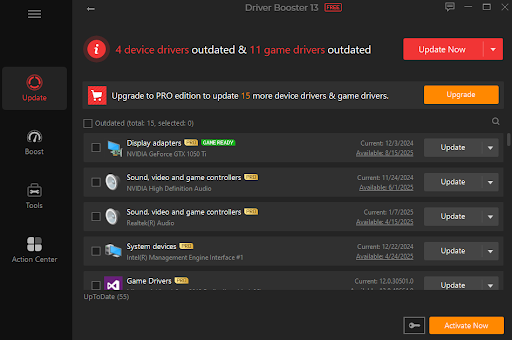
My graphics driver was the one I cared about most, but there were also updates available for other components. It reminded me that a gaming PC isn't just a GPU and CPU. Audio, networking, chipset, USB, and other hardware all depend on drivers to communicate properly with Windows.
I didn't blindly update everything, though. That's one thing I'd recommend to anyone trying a similar approach. A newer driver isn't automatically better for every situation. I checked what was being updated and prioritized the components that were relevant to gaming or had a specific reason for needing an update.
Updating the Graphics Driver Was My Priority
The graphics driver was the obvious starting point.
Game developers and GPU manufacturers regularly release driver updates around new games, patches, and hardware features. Driver Booster specifically supports Game Ready Drivers for NVIDIA GeForce, AMD Radeon, and Intel graphics hardware.
After updating my graphics driver, I restarted the PC and tested the same games under roughly the same settings.
I wouldn't describe the result as a miraculous transformation. My PC didn't suddenly start running games at twice the frame rate. What I did notice was that some of the little inconsistencies seemed less noticeable. Certain games felt smoother, and I had fewer moments where I wondered whether a driver issue was contributing to a problem.
For me, that was a more realistic result than expecting a driver update to turn mid-range hardware into a high-end gaming machine.
Game Boost Was More Interesting Than I Expected
Driver Booster isn't limited to driver updates.
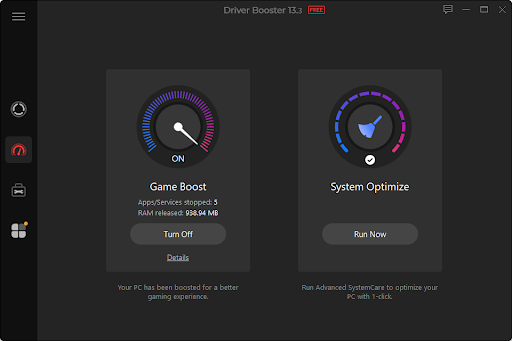
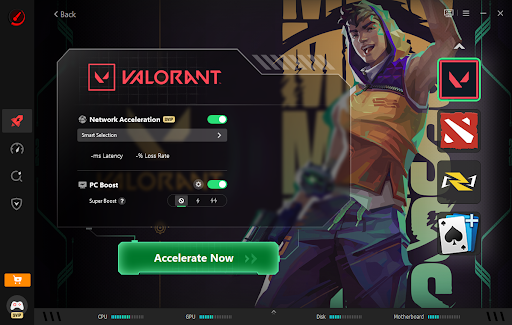
It also includes Game Boost, which can stop unnecessary applications and services to free up system resources while gaming. I was initially skeptical because I've used plenty of "game optimizer" tools that promise huge performance improvements.
So I kept my expectations low. Game Boost is actually fairly straightforward. Rather than changing my hardware settings, it focuses on reducing some of the background activity that I don't need while playing. I normally have a browser, messaging applications, launchers, and other programs running in the background. Some of them are useful when I'm working, but I don't necessarily need all of them competing for resources while I'm gaming.
This was a more practical use of optimization for me. It didn't magically solve every performance issue, but it gave me a quick way to prepare the PC before starting a game.
Drivers Aren't Just About FPS
One thing this experiment changed was how I think about drivers.
Before this, I mostly associated graphics drivers with FPS. But drivers affect far more than frame rates.
For example, I've experienced games where the graphics were fine but the audio suddenly became distorted. I've also had occasional network problems that made online games frustrating.
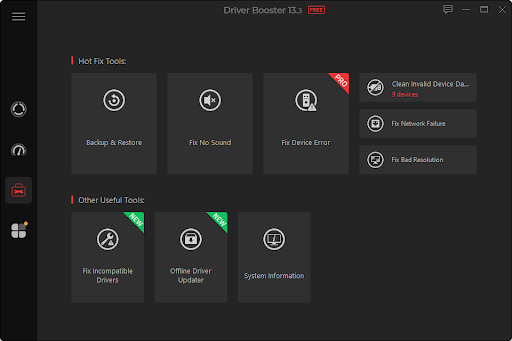
Driver Booster includes tools for common problems such as no sound, network failures, display problems, chipset issues, and USB devices that aren't recognized.
That doesn't mean every problem is caused by a driver. Sometimes it's the game, Windows, hardware, or network itself.
Still, having driver updates as one of the first things to check makes troubleshooting easier.
Where Driver Booster Helped—and Where It Didn't
After spending some time with it, I wouldn't say Driver Booster is a replacement for a hardware upgrade.
If a game requires more GPU memory than my graphics card has, updating a driver isn't going to change that. Likewise, if my CPU is consistently running at 100% or my PC simply doesn't meet a game's recommended specifications, there's only so much software optimization can accomplish.
That's an important limitation. For me, Driver Booster worked best when the problem was related to outdated drivers, device compatibility, background resource usage, or simply keeping the system maintained.
I also wouldn't recommend updating every available driver just because the software says an update exists. I prefer checking the results and prioritizing updates that have a clear reason behind them.
My New Gaming Routine
I eventually settled into a fairly simple routine. Before troubleshooting a game, I check whether my graphics driver is current. If I'm experiencing sound, network, or peripheral problems, I check the relevant drivers as well.
Every now and then, I'll run a full scan to see if anything important has been missed. Before a longer gaming session, I can also enable Game Boost if I have lots of unnecessary applications running. It takes considerably less time than manually visiting several manufacturer websites. And most importantly, I haven't had to spend money on new hardware just to deal with problems that may have been caused by software in the first place.
Final Thoughts
I didn't turn my gaming PC into a high-end machine without buying new hardware, but I did get more out of what I already had. Keeping my drivers updated and using Driver Booster as a driver updater made routine maintenance much easier, while features like Game Boost helped reduce unnecessary background activity. It won't replace a hardware upgrade when one is genuinely needed, but it's a practical first step before spending money on new components.