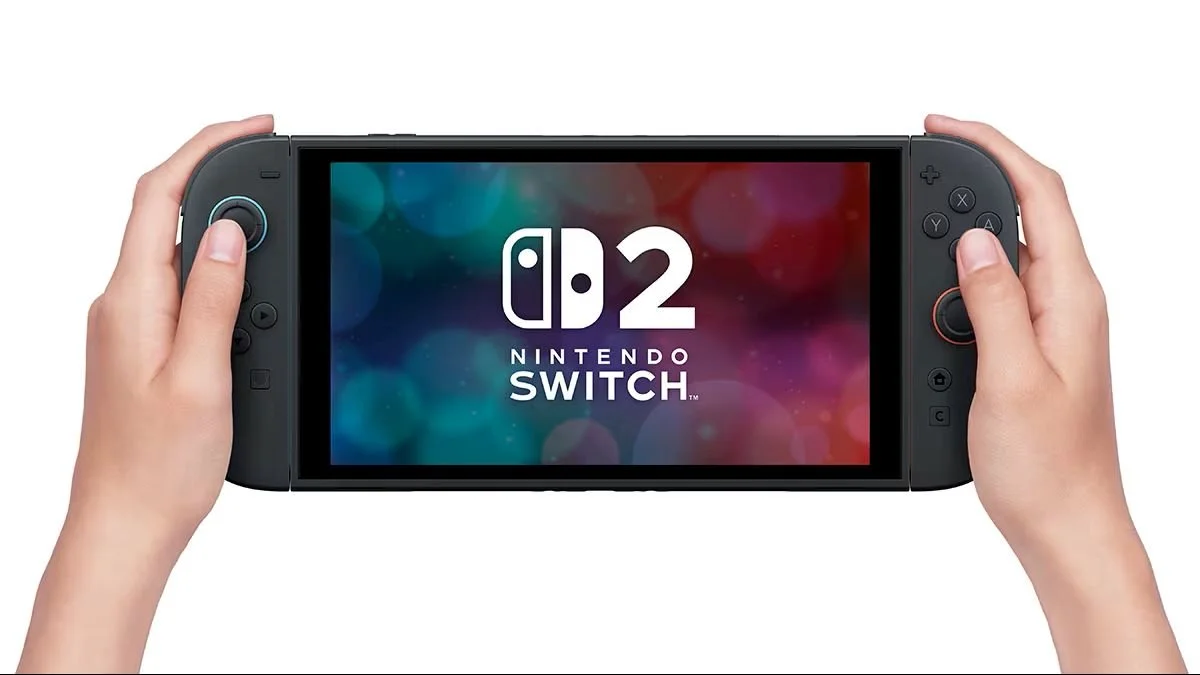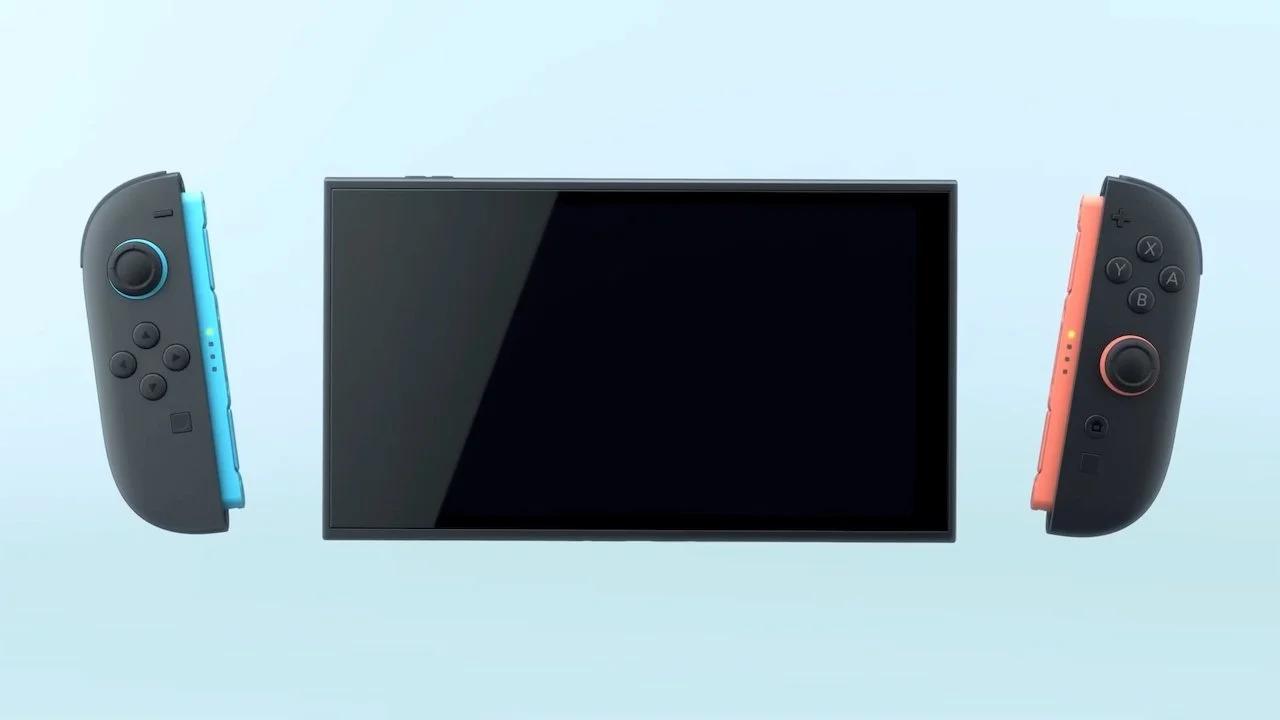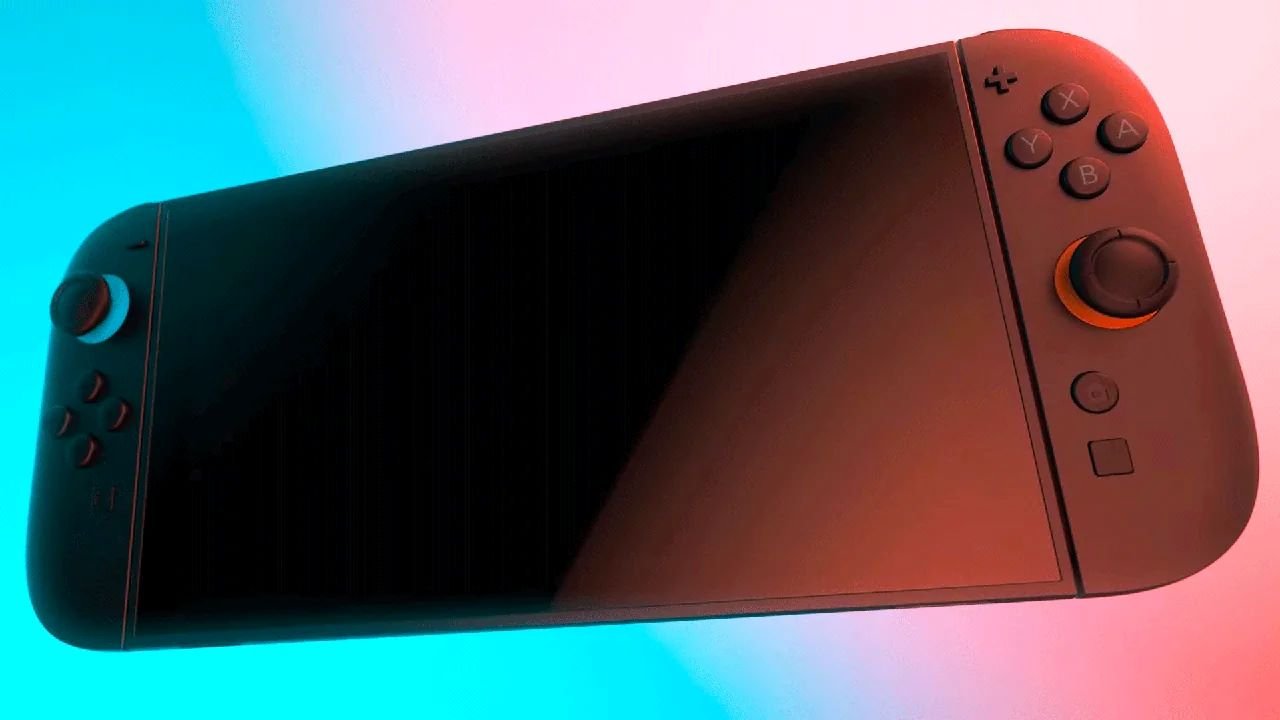
If you’ve played the original Nintendo Switch, the Nintendo Switch 2 is just as good, if not better, with the upgrades. There’s a lot to enjoy with the new console, from great new entries in beloved series and better graphics. It’s no wonder that it’s one of the most popular family consoles, much like the Wii was.
As one can expect, you’ll have a ton of accounts on your Nintendo Switch 2, either family or friends. Even still, there may come a time, like now, when you want to remove someone from the console. So, how do you delete a user account from the Nintendo Switch 2? We have the answer to that very question and more with this helpful guide.
It’s important to note that once an account is deleted, you’ll lose whatever save and user data is on that account. If you want to save that data, make sure to back it up via Cloud saving or a USB drive.
How do you delete a user account on the Nintendo Switch 2?
To delete an account on the Nintendo Switch 2, make your way to System Settings on the Home Menu. It should be next to the power icon on the toolbar.
Next, go down and click Users. Scroll to whoever’s account you want to delete and click on their icon. From there, scroll all the way to the bottom of the user’s settings, and you’ll find Delete User. Select this to be prompted with a warning. Make sure to read this carefully.
If you’re ready to delete the user, click Continue. Select Next, read the follow-up warning, and confirm your decision by clicking Delete User. The account will now be wiped from the Nintendo Switch 2.